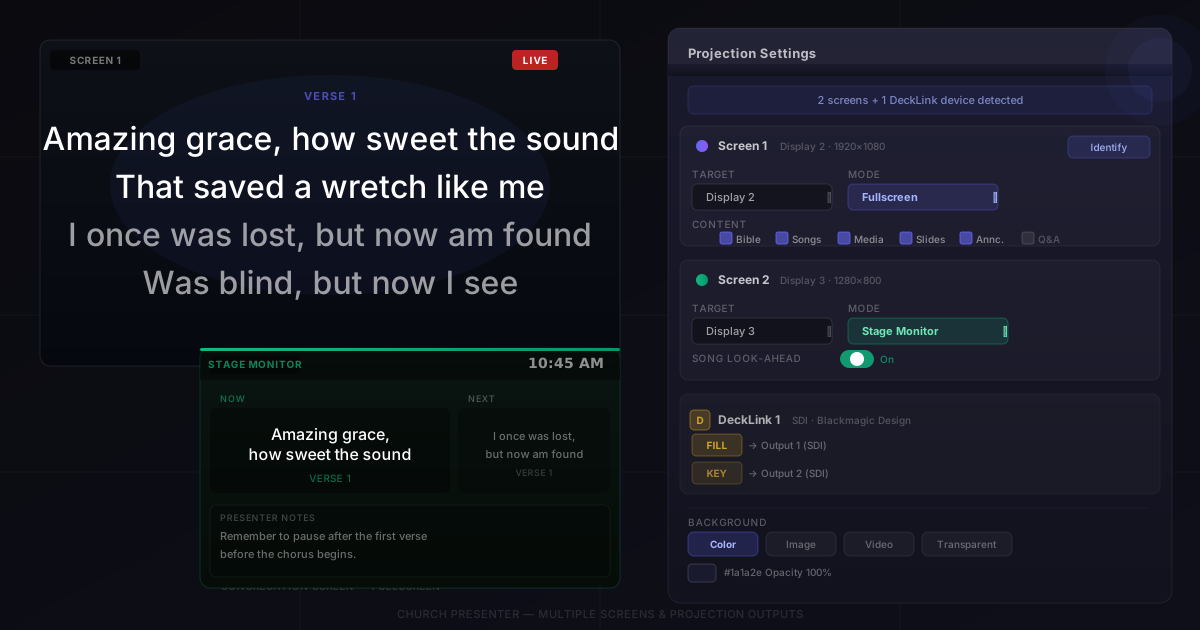
Church Presenter supports an unlimited number of projection outputs — one window per connected display, plus any Blackmagic DeckLink or SDI devices you have installed. Each output is independently configured: its own display target, display mode, content filters, and background. There is no per-screen licensing or artificial limit.
How Church Presenter detects your screens
When you launch the app, it automatically scans for connected displays and Blackmagic DeckLink devices. One output window is opened for each non-primary display and each DeckLink device it finds.
You don’t need to create outputs manually. Connect your projectors or monitors before launching the app (or while it is running), and the settings panel reflects what is physically available.
Opening projection settings
Go to Settings → Projection to configure your outputs. The panel shows a row for each detected output window. At the top you can see how many physical screens and DeckLink devices were found.
Click Identify Screen to flash a numbered label on each connected display — useful when you have several monitors connected and need to know which one is which.
Assigning a display to each output
Each output row has a Target Display dropdown. It lists every non-primary physical display and every detected DeckLink device. Select the display you want that output window to appear on.
If a display is listed but you don’t want an output on it, select None in the dropdown. That output slot remains inactive.
Note: Church Presenter never uses your primary monitor (the one showing the app itself) as a projection target.
Choosing a display mode
Each output has a Display Mode setting with three options:
- Fullscreen — content fills the entire display. The default for main projection screens.
- Lower Third — content appears as a band across the bottom portion of the display. Useful when you want to overlay text over a live camera feed or video mixer downstream.
- Stage Monitor — shows the confidence display: current slide, next slide, a clock, countdown timer, section labels, and presenter notes. Designed for a screen facing the platform.
You can mix modes across outputs. For example: output 1 set to Fullscreen for the congregation screen, output 2 set to Stage Monitor for the worship leader.
Lower third height
When using Lower Third mode, the Lower Third Height setting (10–60%, default 33%) controls how tall the band is as a percentage of the display height. This setting applies globally to all outputs in lower third mode.
Filtering content per output
Each output can be configured to show or hide specific content types independently. The checkboxes per output are:
- Bible — Scripture verses
- Songs — song lyrics
- Pictures — image slideshow
- Media — audio and video playback
- Streaming — live stream/canvas
- Announcements — on-screen text and timers
- Website — live web pages
- Q&A — audience questions
- Captions — live speech-to-text
Unchecking a type on an output means that output goes blank when that content type is sent live — all other outputs continue showing it. This lets you, for example, show Bible verses on the congregation screen but not on a lobby TV that only shows song lyrics and announcements.
Song look-ahead
Each output also has a Song Look-Ahead toggle. When enabled, that output shows the next verse or section instead of the current one — useful for a monitor facing the band so musicians can see what is coming up while the congregation sees the current lyrics.
Setting up a stage monitor
Set any output’s display mode to Stage Monitor to turn it into a confidence display. The stage monitor shows:
- Current slide (large, readable from the platform)
- Next slide (smaller preview below)
- A live clock
- The active countdown timer
- Section labels (verse, chorus, bridge)
- Presenter notes from PowerPoint and Keynote files
Connect a small monitor near the podium or worship leader position and assign it to the stage monitor output. No extra software or hardware is needed.
Fill and key output for broadcast
For broadcast setups that use hardware keying — sending a clean graphic signal into a video mixer — each output can be configured with a separate Key Output.
- The fill is the full-color graphic (what you see on the main output).
- The key is a black-and-white matte used by the mixer to cut out the graphic shape.
To enable this, choose a Key Output target in the output’s key row. The key target can be a separate physical display or a Blackmagic DeckLink device. Church Presenter outputs a proper luminance key signal, making it compatible with hardware keyers in ATEM switchers and similar broadcast equipment.
Fill and key output over SDI requires a Blackmagic DeckLink card that supports dual output.
Configuring backgrounds
Background settings live in Settings → Background. You can set a default background that applies to all outputs, with the following types:
- Solid Color — pick any color with the color picker; set opacity independently.
- Image — choose an image file to fill the screen behind all content.
- Looping Video — choose a video file that loops silently behind all content (requires VLC to be installed).
- Transparent — no background is drawn. The output window passes through whatever is behind it on the desktop — useful for software keying in OBS or similar.
A gradient overlay can be enabled on top of any background type, with configurable top color, bottom color, position, and opacity.
You can also set a separate background specifically for lower third mode, so the band behind your text looks different from the full-screen background when you switch modes.
Live preview
The live preview panel (bottom of the main window) always shows exactly what is currently on each output screen. The preview updates in real time as you switch content. If you have multiple outputs, a tab or indicator for each one appears in the panel so you can monitor all screens from the operator’s seat without looking up at the displays.
Tips
Connect displays before launching the app. Church Presenter reads the display list at startup and when settings open. If you plug in a new monitor while the app is running, reopen the Projection settings to refresh the list.
Use Identify Screen before every service. Display numbering can shift if you reboot or reconnect cables. A quick identification flash confirms which output window is on which physical screen before the service starts.
Set the stage monitor output to Look-Ahead for songs. Enable the song look-ahead toggle on the stage monitor output so musicians always see the next section, while the congregation screen shows the current one.
Transparent background + OBS = software keying. Set the background type to Transparent on an output that covers a region of your desktop, then capture that region as a window source in OBS. OBS can chroma- or luma-key the result directly, giving you a low-cost alternative to hardware fill+key.
Lower third height depends on your camera cut. If you are feeding the lower third output into a video mixer, adjust the height percentage to match where your camera operator frames the shot — you want text to appear in the safe title area, not behind a podium or off the bottom of frame.
Test backgrounds on the actual projector before Sunday. Colors render very differently on a projector under ambient light than on your computer monitor. Load a test slide, push it live, walk to the projection screen, and confirm the contrast is readable from the back of the room.
New to Church Presenter? Start with How to Set Up Worship Presentation Software for the First Time.