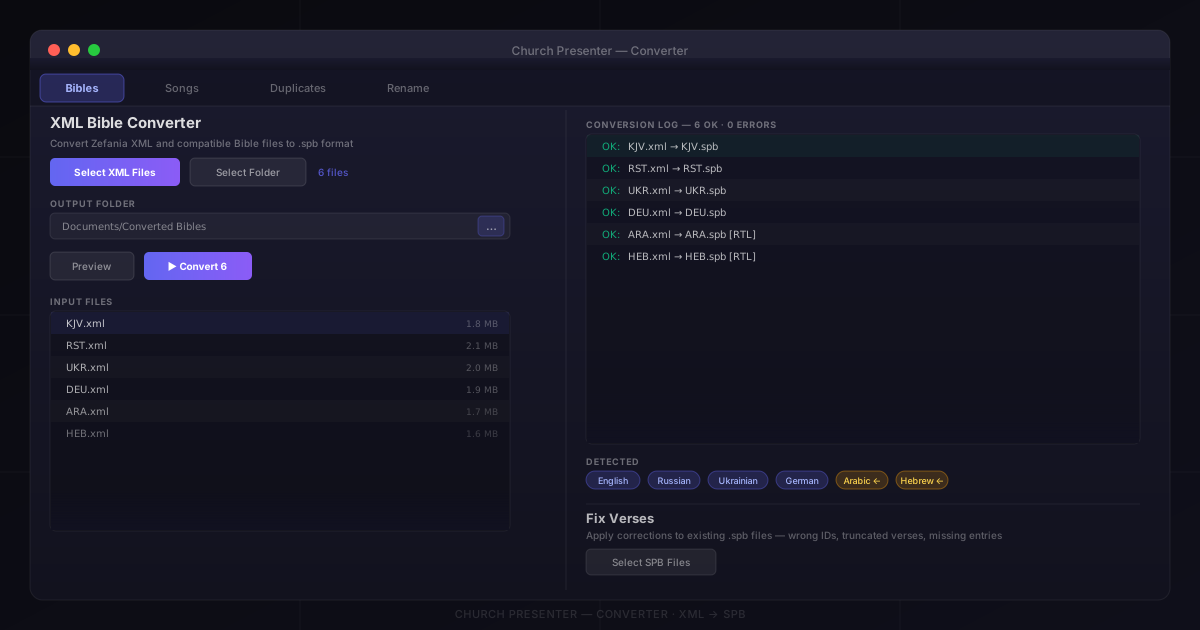
Church Presenter ships with a built-in Bible library, but many churches already have their own Bible files in XML format — a widely used open standard for distributing translations in dozens of languages. Rather than relying solely on the translations pre-installed with the app, you can convert any compatible XML Bible file into Church Presenter’s native .spb format and use it immediately for verse display. This guide walks through the full process from file selection to verified import.
Supported XML formats
The most common format is Zefania XML, an open standard used by hundreds of translations across 60+ languages — available from community repositories, Bible societies, and translation projects, including translations in Ukrainian, Russian, German, Arabic, Hebrew, Chinese, Korean, and many others.
The Converter also handles a simpler alternative XML structure that some distribution sites use (with a <bible translation=""> root element instead of the Zefania layout). You don’t need to know which variant you have — the Converter detects it automatically from the file structure.
Note: Church Presenter supports the 66 canonical books of the Bible (Genesis through Revelation). Apocrypha and Deuterocanonical books are not currently supported — if your XML file contains them, they will be skipped during conversion.
Step 1: Obtain an XML Bible file
Download or locate the .xml file for the translation you want to add. Common sources include community Bible repositories and translation society websites. The file will typically be named after the translation abbreviation — for example, KJV.xml, RST.xml (Russian Synodal), or NKJV.xml.
If you have a folder of multiple translations, you can convert them all in one batch — you don’t need to process files one at a time.
A note on copyright: Many modern Bible translations are under copyright, and the licence may restrict how you can distribute or display them — even within a church. Public domain translations (such as the KJV, ASV, World English Bible, and many older-language editions) are safe to use freely. For newer translations like the NIV, ESV, or NKJV, check the publisher’s terms; most require a licence for on-screen projection in church services, which is typically covered by a CCLI licence that also covers song lyrics. If you’re unsure whether a specific translation file you’ve downloaded is authorised for distribution, contact the publisher or translation society before using it in services.
Step 2: Open the Converter
The Converter is built into Church Presenter — no separate download needed.
- Open Church Presenter.
- Go to Help → Converter.
The Converter opens with tabs across the top. Click the Bibles tab.
Step 3: Select your XML files
You have two options depending on how many files you want to convert:
Single file or a few files:
- Click Select XML Files.
- Navigate to your
.xmlfile(s) and select them. You can select multiple files at once with Ctrl+click (Windows/Linux) or Cmd+click (macOS).
An entire folder of XML Bibles:
- Click Select Folder.
- Choose the folder containing your
.xmlfiles. The Converter scans the folder recursively and adds all XML files it finds.
The file count updates next to the buttons so you can confirm the right number of files was detected.
Step 4: Choose an output folder
Click Output Folder and choose where the converted .spb files should be saved. If you don’t select one, the Converter places each .spb file alongside its source .xml file.
A dedicated output folder — such as Documents/Converted Bibles — is recommended so the results are easy to find and review before moving them into Church Presenter.
Step 5: Preview before converting
Click Preview to see what the Converter will produce before writing anything to disk. The preview list shows each input file and the output filename it will create. This is the right moment to confirm that the files you expect are listed and that the output paths look correct.
Step 6: Convert
Click Convert (or Convert N files if you previewed first). The Converter processes each XML file and writes a .spb file to the output folder. A progress log shows each file as it completes:
- Lines beginning with
OK:confirm a successful conversion. - Lines beginning with
ERROR:indicate a file the Converter could not parse. See the troubleshooting section below for common causes.
Conversion is fast — even a large translation with all 66 books typically converts in under a second.
Step 7: Move the converted files into Church Presenter
Once conversion is complete, copy the .spb files into Church Presenter’s Bible directory.
- In Church Presenter, go to Settings → Bible.
- Note the Bible Directory path — this is where Church Presenter looks for
.spbfiles. - Copy your converted
.spbfiles into that directory. - Switch to the Bible tab in Church Presenter. Your new translations appear immediately without needing to restart the app.
If you converted multiple translations, all of them will be available and can be selected individually for display — including as a second translation in dual-display mode.
What the Converter handles automatically
Language detection: The Converter reads the <language> field from the XML’s <INFORMATION> block to identify the language. If the language field is absent or ambiguous, it falls back to checking the file path (a common pattern in organized Bible repositories where files are sorted into language folders).
Book names in the target language: For 14 supported languages — including English, Ukrainian, Russian, German, French, Spanish, Portuguese, Italian, Dutch, Polish, Chinese, Korean, Arabic, and Hebrew — the Converter uses the correct localized book names rather than the English defaults, regardless of what the XML file itself calls the books.
Right-to-left support: Bible translations in Arabic, Hebrew, Syriac, Central Kurdish, and Chaha-Shua are automatically flagged as right-to-left in the output .spb file. Church Presenter uses this flag to display the text correctly in the verse view without any manual adjustment.
Orthodox Psalm numbering (LXX): Many Slavic, Greek, Romanian, Georgian, Ethiopian, Coptic, and Syriac translations follow the Septuagint (LXX) Psalm numbering, which differs from the Hebrew numbering used in Protestant Bibles. For languages that follow this tradition — including Russian, Ukrainian, Belarusian, Serbian, Bulgarian, Macedonian, Romanian, and Greek — the Converter automatically remaps Psalm chapter numbers to the Hebrew equivalents. This keeps cross-references consistent when a church uses both LXX-numbered and Hebrew-numbered translations side by side.
Psalm superscriptions: Some LXX translations encode the Psalm title (e.g., “A Psalm of David”) as verse 1, shifting all subsequent verse numbers by one. The Converter detects standalone superscriptions and codes them as verse 0, so the numbering in Church Presenter matches what worshippers see in printed Bibles.
Verse text corrections: For a small set of known errata in widely distributed translation files — verses with truncated or transposed text — the Converter applies corrections automatically during conversion.
Fixing existing SPB files
If you converted Bibles previously using an older version of the Converter, or if you obtained .spb files from another source, the Fix Verses section at the bottom of the Bibles tab can bring them up to date.
- Click Select SPB Files and choose your existing
.spbfiles. - Click Fix Verses.
The patcher applies the same corrections (merged duplicate verse IDs, wrong verse codes, truncated text, missing verses) to the existing files in place. The log shows how many changes were made to each file, or confirms that no patches were needed.
Verifying the import
After adding translations to Church Presenter, spend a couple of minutes checking the results:
- Search for a well-known verse — open the Bible tab, navigate to John 3:16 or Genesis 1:1 in your new translation and confirm the text looks correct.
- Check Psalms — if you imported an LXX-numbered translation, verify that Psalm 22 (Hebrew) displays the correct text (“My God, my God, why have you forsaken me?”). LXX Psalm 21 should map to the same content.
- Check a right-to-left translation — if you imported an Arabic or Hebrew Bible, confirm the text flows right-to-left in the verse display.
- Browse a few random chapters — spot-check that special characters, diacritics, and non-Latin scripts came through cleanly.
If anything looks wrong, the original .xml files are untouched. You can adjust the source file and re-run the conversion at any time.
Troubleshooting
ERROR: ... could not parse — The XML file may be malformed or use a schema the Converter doesn’t recognize. Open the file in a text editor and check whether the root element is <ZEFANIA> (standard Zefania format) or <bible> (simple XML format), and whether book elements are named <BIBLEBOOK> or <book>. If neither matches, the file uses a different XML Bible format that the Converter doesn’t yet support.
Garbled or missing book names — If book names appear as “Book 1”, “Book 2”, etc., the Converter couldn’t identify the language and fell back to English book numbers. Check the <language> field in the XML’s <INFORMATION> block. If it’s missing or set to an unrecognised code, you can rename the translation’s output folder to match one of the supported language codes (e.g., RUS, UKR, DEU) before re-running.
Wrong verse count in Psalms — If a Slavic translation shows 151 Psalms instead of 150, the XML includes Psalm 151, which appears in Orthodox canons. This is correct behaviour — Church Presenter displays all verses present in the source file.
Once your Bible translations are imported, you can display them alongside each other using the dual-translation feature. See How to Use Dual Bible Translations in Church Presenter for the full walkthrough.
New to Church Presenter? Start with How to Set Up Worship Presentation Software for the First Time.