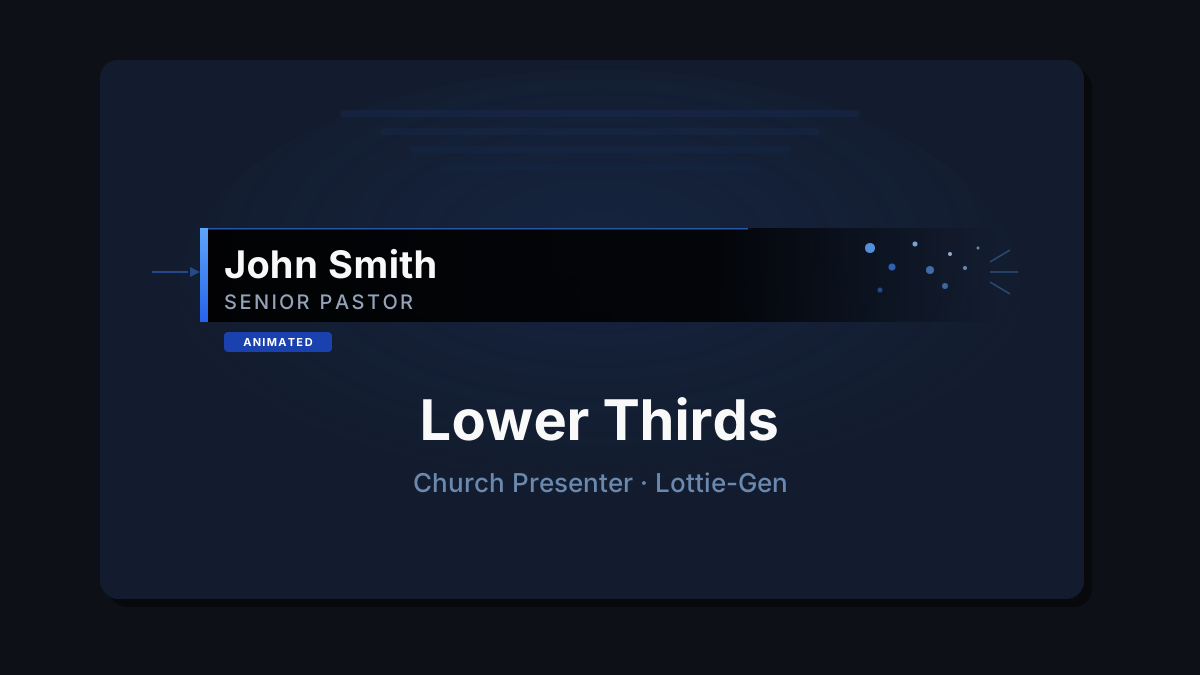
A lower third is a graphic that appears in the bottom portion of the screen — typically showing a person’s name and title during a sermon introduction, a speaker welcome, or a Scripture reference. Church Presenter plays these as smooth Lottie animations, and the built-in Lottie Lower Third Generator lets you design them from scratch without After Effects or any external software.
This guide walks through the full workflow: opening the generator, designing an animation, saving it, and triggering it live during a service.
The Lower Thirds tab (F11)
Press F11 to open the Lower Thirds tab. This is where you manage your animation files and presets, trigger lower thirds live, and access the generator.
Before designing anything, tell Church Presenter where to store your animation files. Click the Lower Third Animations Folder button (or go to Settings → Lower Third Settings) and choose a folder on your computer. Church Presenter watches that folder — any .json file you add or save there appears in the tab automatically.
Opening the generator
At the bottom of the Lower Thirds tab, click Generate. This opens the Lottie Lower Third Generator in a separate window within the app — no browser or external tools required.
The generator window is divided into two areas: a panel of editor controls on the left and a live preview canvas on the right.
Designing your lower third
Text
The Text section is the starting point. Two fields control what’s displayed:
- Name — the primary line, typically a person’s name or a headline. Rendered larger and bolder by default.
- Info — the secondary line below the name, typically a title or role (e.g., “Senior Pastor” or “John 3:16”).
Type your text into both fields and the preview updates immediately.
Style & Layout
The Style dropdown selects the overall visual template — the arrangement of the background bar, text block, and accent elements. Alignment controls whether the lower third sits on the left, center, or right of the canvas.
Color themes
The fastest way to get a polished look is to apply one of the eight built-in color themes:
- Classic Red — strong red accent, dark background
- Ocean Blue — deep blue tones
- Emerald — rich green palette
- Sunset — warm orange and amber
- Purple Haze — muted violet
- Minimal Light — light background, subtle borders
- Gold — warm gold accent on dark
- Neon Pink — high-contrast bright accent
Click a theme chip and the preview updates instantly. You can then fine-tune individual colors in the Colors section.
Colors
The Colors section gives you per-element control:
- Name Text — color of the primary text line
- Info Text — color of the secondary text line
- Accent — the colored stripe or highlight element
- Background — the bar behind the text
- Border — outline or edge element
Each is a standard color picker. Changes reflect immediately in the preview.
Typography
Expand Text Style to adjust fonts and sizing:
- Font — ten included fonts: Open Sans, Roboto, Lato, Montserrat, Nunito, Oswald, Playfair Display, Raleway, Poppins, Source Sans 3. All fonts are bundled — no internet connection needed.
- Base Size (px) — the root font size the em values scale against.
- Name Size (em) and Info Size (em) — relative sizes for each line.
- Name Weight / Info Weight — font weight (e.g., Regular, Bold).
- Name Transform / Info Transform — Uppercase, Capitalize, Lowercase, or None.
Shape
Expand Shape to refine the background bar:
- Corners (em) — rounded corner radius. Increase for pill-shaped bars.
- Border Thickness — width of the border around the background.
- Show Background — toggle the background bar on or off.
- Shadow — add a drop shadow behind the lower third.
- Hide Name / Hide Info — toggle either text line off if you only need one.
Logo
Expand Logo and enable it to add a church logo or icon alongside the text. Click Upload Logo and choose a PNG, JPG, SVG, or WebP file. Use the Logo Size slider to scale it relative to the text height.
Logos are saved to the generator’s logo library, so once uploaded you can reuse them across different designs.
Timing
Expand Timing to control animation speed and duration. The animation plays in three phases: entrance (animating in), hold (on screen), and exit (animating out). Timing controls let you set the duration of each phase so the lower third stays on screen long enough to read but doesn’t linger.
Position
Expand Position to adjust where on the canvas the lower third sits. The default is bottom-left, but you can move it up, shift it horizontally, or change the margin from the edge.
Canvas
Expand Canvas if your output resolution differs from the default. Set Width and Height to match your projection resolution (typically 1920 × 1080), then adjust Scale if you want to preview at a different zoom.
Previewing the animation
The canvas on the right shows a live preview. Use the playback controls below the canvas to watch the full animation:
- Play — runs the entrance, hold, and exit sequence from the beginning.
- Pause — freezes the preview at the current frame.
- Restart — resets to the first frame.
Adjust your settings while the animation plays to see changes in real time.
Saving your design
When you’re happy with the result, click Save. The generator writes a Lottie JSON file directly into the Lower Third Animations Folder you configured. The Lower Thirds tab in Church Presenter detects the new file automatically and adds it to the list — no manual import step required.
Setting up a preset in the Lower Thirds tab
Once a file appears in the Lower Thirds tab, you can create a preset that makes it easy to trigger repeatedly during a service.
Click Import Lottie File (or select the file from the list) and fill in a Preset Label — a short name like “Pastor Introduction” or “Scripture Reference”. Click Save Preset to store it.
Search and replace pairs
Lower thirds often reuse the same design with different names. Instead of designing a new animation for every person, add search and replace pairs to a preset. For example, set a search value of {{NAME}} and the replace value of Pastor John. When the preset runs, Church Presenter substitutes the placeholder in the Lottie JSON with the real text at runtime — so one animation file serves the whole team.
To add a pair, click + Add Pair, type the search string and the replacement, then save the preset.
Pause frame
If you want the lower third to animate in, hold on screen indefinitely, then animate out only when you trigger it again, set a Pause Frame. Scrub the animation in the tab to find the frame where the hold should begin, then save it to the preset. During the service, Church Presenter pauses there and waits for your next action.
Triggering a lower third live
Select a preset from the list in the Lower Thirds tab, then:
- Click Go Live (or double-click the preset) to start the animation on the projection screen.
- The lower third plays over whatever else is on screen — Bible verses, songs, and slides remain visible underneath.
- Click Clear (or press Escape) to dismiss it.
Adding lower thirds to the schedule
You can queue a lower third as a schedule item so it’s ready to trigger at a specific point in the service without switching tabs. In the Lower Thirds tab, select your preset and click Add to Schedule (F2). The preset appears in the Schedule panel and can be triggered from there at any point — it doesn’t interrupt whatever is already on screen.
Tips
Design at your output resolution. Set the Canvas Width and Height to 1920 × 1080 (or your actual output size) before you design. The proportions you see in the preview match what the audience sees.
Use search/replace for speaker names. Create one clean design for speaker introductions and reuse it for every person by updating the replace value in the preset. You only have to adjust the preset, not redesign the animation.
Keep Info text short. Two or three words read well on screen. Long titles wrap or shrink and can become hard to read at distance. Shorten roles to fit on one line.
Test the timing on the real projector. The right hold duration depends on how fast your congregation reads. A 3-second hold is tight; 5–7 seconds is comfortable for a name and title.
Pin frequently used presets. If you use the same welcome lower third every week, keep it at the top of the presets list for fast access during the service.
Save the design before the service. Don’t generate new animations on Sunday morning — build them in advance, verify the preview looks right at the real output resolution, and arrive with the file already in the Lower Thirds tab.
For adding lower thirds to a complete service plan, see How to Build and Run a Sunday Service Schedule in Church Presenter.
New to Church Presenter? Start with How to Set Up Worship Presentation Software for the First Time.